
To use a WiFi BBQ thermometer, first set up your device by inserting probes into your meat and ensuring it’s powered on and connected to your WiFi network. Download the compatible app on your smartphone or tablet, pair the device via Bluetooth, and then connect it to your WiFi. Monitor your meat’s temperature remotely through the app, set alerts for target temperatures, and adjust your grill accordingly. For detailed steps and tips, keep exploring the process.

Get kitchen gear delivered free with Prime
- Fast, free delivery on millions of items
- Prime Video, Amazon Music and more included
- Member-only deals all year
Key Takeaways
- Prepare your equipment by inserting probes into meat and ensuring the thermometer is charged and powered on.
- Connect and pair your device via WiFi and Bluetooth using the dedicated app on your smartphone or tablet.
- Insert probes into the thickest part of the meat and position it securely on the grill for accurate readings.
- Use the app to monitor temperature in real-time, set alerts, and adjust grill settings accordingly.
- Clean probes after use, calibrate periodically, and store the device properly for optimal performance.
As an affiliate, we earn on qualifying purchases.
Gathering Your Equipment and Setting Up the Thermometer

Before you start grilling, gather all the necessary equipment, including your WiFi BBQ thermometer, batteries, and charging cables. Selecting the right meat is vital, so choose cuts suited to your cooking method and make sure they’re fresh. With your thermometer ready, check that it’s compatible with your device and fully charged or has fresh batteries. Proper setup is essential for grill safety; secure the probe correctly to prevent accidents and ensure accurate readings. Make sure your grill area is clear of clutter, and keep the thermometer’s cables away from direct flames. Preparing your equipment beforehand helps maintain safety standards and allows you to focus on cooking. Once everything is in place, you’ll be ready to monitor your meat’s temperature precisely, ensuring a perfectly cooked meal.
As an affiliate, we earn on qualifying purchases.
Connecting the Thermometer to Your WiFi Network

How do you connect your WiFi BBQ thermometer to your network? First, confirm your device is powered on and in pairing mode. Open your device’s WiFi settings and select the thermometer’s network. Then, access the thermometer’s setup interface via a browser or app. During this process, you’ll see a connection status similar to:
| Step | Description |
|---|---|
| 1 | Connect to the device’s WiFi |
| 2 | Enter your home network details |
| 3 | Confirm connection and security |
This process establishes wifi connectivity, but be mindful of network security. Use strong passwords and keep firmware updated to prevent unauthorized access. Once connected, your thermometer will communicate seamlessly over your secure network.
As an affiliate, we earn on qualifying purchases.
Installing the Corresponding Mobile App

First, you’ll need to download the app compatible with your thermometer. Next, create a user account to personalize your experience. Finally, follow the prompts to connect the app to your WiFi network and get ready to monitor your grilling remotely.
Download Compatible App
To get started, you’ll need to download the compatible app for your WiFi BBQ thermometer. Make sure the app you choose supports your device’s compatibility to avoid any issues. Check your thermometer’s packaging or manufacturer’s website for specific app requirements. Once downloaded, keep the app updated to ensure you have the latest features and bug fixes. Regular device updates help maintain app compatibility and improve overall performance. Installing the correct app guarantees seamless communication between your smartphone and the thermometer. Follow your device’s instructions to find and download the app from your device’s app store. Once installed, you’re ready to connect your thermometer and start monitoring your cook remotely. Being mindful of app compatibility and updates ensures you get the best experience.
Create User Account
Once you’ve downloaded the compatible app, the next step is creating a user account. You’ll need to complete the user registration process, which typically involves entering your email, creating a password, and verifying your identity. Make sure to choose a strong password to enhance account security. Some apps may ask for additional details like your name or location, but avoid sharing unnecessary personal information. During registration, you’ll likely see options to enable two-factor authentication or other security features—activate these for added protection. Creating a secure, unique password and enabling account security measures help safeguard your data and ensure only you can access your device controls. Once registration is complete, you’ll be ready to connect your WiFi BBQ thermometer and start grilling smarter.
Connect to WiFi
Before connecting your WiFi BBQ thermometer, you need to install the corresponding mobile app on your smartphone or tablet. Once installed, open the app and follow the prompts to connect your device to WiFi. Confirm your WiFi network is secure to protect your data and prevent unauthorized access. If you encounter troubleshooting connectivity issues, restart your router, ensure your device is close enough to the WiFi signal, and verify your network credentials. Here’s a quick overview:
| Step | Action | Tip |
|---|---|---|
| Install App | Download from app store and open | Keep your device updated |
| Connect Thermometer | Follow app instructions for pairing | Check WiFi security settings |
| Troubleshoot | Restart router or re-enter credentials | Maintain close proximity |
Stay calm—most connectivity issues are simple to resolve!
As an affiliate, we earn on qualifying purchases.
Pairing the Thermometer With Your Smartphone or Tablet

Pairing your WiFi BBQ thermometer with your smartphone or tablet is straightforward, but it requires a few simple steps to guarantee a smooth connection. First, verify your device is compatible with the thermometer, checking the manufacturer’s specifications for device compatibility. Next, turn on Bluetooth on your smartphone or tablet. Usually, Bluetooth pairing is necessary to initially connect the thermometer to your device. Open the thermometer’s app, follow the prompts to find and select your thermometer from the list of available devices, and complete the pairing process. Once paired via Bluetooth, your device will automatically connect to the thermometer over WiFi for real-time monitoring. Proper pairing ensures seamless communication, giving you full control and accurate temperature readings during your cook.
Inserting the Probes Into Your Meat and Placing It on the Grill

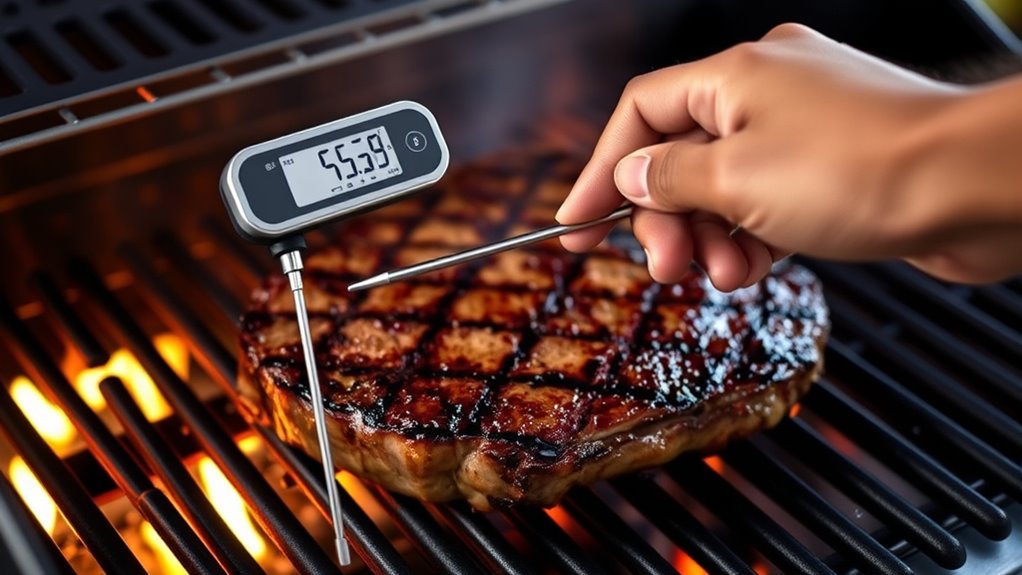
To get accurate readings, you need to insert the probes properly into your meat, ensuring they reach the thickest part without touching bone or fat. Make sure the meat is securely placed on the grill so it doesn’t shift and affect the temperature measurement. Correct probe placement and steady positioning are key to monitoring your meat’s progress precisely.
Proper Probe Placement
Proper probe placement begins with inserting the probes into the thickest part of your meat, avoiding bones and fat pockets that can give inaccurate readings. Ensuring correct probe placement is key to monitoring the internal temperature accurately. When positioning the probe, make sure it’s centered in the meat, not touching bone or fat, which can skew results. Proper meat positioning on the grill also matters; place the meat so the probe wire isn’t strained and the thermometer’s sensor has clear airflow for accurate readings. Once inserted, keep the probe stable and avoid moving it during cooking. This careful probe placement helps you track your meat’s progress precisely, ensuring it reaches the desired temperature without overcooking or undercooking.
Secure Meat Position
Before placing your meat on the grill, insert the probe into the thickest part of the meat, guaranteeing it’s centered and away from bones and fat pockets. Proper meat placement is essential for accurate temperature readings. Carefully position the probe so that the wire exits smoothly without pinching or bending. Good probe positioning prevents inaccurate readings and avoids damaging the sensor. Once the probe is securely in place, you can confidently place the meat on the grill, knowing your WiFi thermometer will monitor its temperature effectively. Keep the probe steady and ensure it’s fully inserted for consistent results. Proper probe positioning and meat placement help you achieve perfect doneness without constant monitoring.
Monitoring Temperature Readings Remotely via the App

Once your WiFi BBQ thermometer is set up, monitoring temperature readings remotely becomes simple and convenient. Using the app, you can stay updated without being near the grill. You’ll see real-time data displayed clearly on your device, allowing you to track your meat’s progress. The app often provides notifications, alerting you when your target temperature is reached, so you don’t have to check constantly. Imagine:
- Receiving instant alerts on your phone
- Viewing temperature graphs for easy analysis
- Switching between multiple probes seamlessly
- Checking current readings from anywhere
- Customizing notification preferences
With remote monitoring, you gain peace of mind and better control over your cooking. The app’s notifications ensure you’re always in the loop, preventing overcooking or undercooking your meat.
Adjusting Grill Settings Based on Temperature Data

After setting up remote monitoring, you can actively respond to temperature data by adjusting your grill settings. If the grill temperature in a specific cooking zone is too high or low, tweak the airflow or burner levels to bring it into the desired range. Use the WiFi thermometer’s real-time data to identify hot spots or cold zones, and modify the heat distribution accordingly. Managing separate cooking zones allows you to create distinct temperature zones, ideal for different types of food. For example, lower heat for slow-cooking and higher heat for searing. Constantly monitor the readings to ensure consistent temperatures, avoiding overcooking or undercooking. Making these adjustments helps achieve excellent results, ensuring your meat reaches the perfect doneness while maintaining even heat distribution across your grill.
Using Alerts and Notifications for Optimal Cooking

Using alerts and notifications can profoundly enhance your grilling experience by keeping you informed of temperature changes without constant monitoring. With alert customization, you can set specific thresholds for your cooking temperature, ensuring you’re notified precisely when your food reaches the desired doneness. Imagine hearing a chime as the smoker hits your target or receiving a push notification when the temperature drops unexpectedly. You can customize alerts for:
- When the meat reaches your ideal internal temperature
- Sudden temperature drops or spikes
- Pre-set cooking milestones
- Grill or smoker temperature fluctuations
- Timer-based notifications for turning or resting
These alerts help you focus on other tasks, prevent overcooking, and achieve perfect results every time. Proper use of notifications transforms your grilling into a stress-free, precise process.
Cleaning and Maintaining Your WiFi BBQ Thermometer

Regular cleaning and maintenance are essential to keep your WiFi BBQ thermometer functioning accurately and reliably. Start by following cleaning tips like gently wiping the sensor with a damp cloth and avoiding abrasive cleaners that could damage it. Make sure to clean the probe after each use to prevent residue buildup. Regular calibration procedures are equally important; use the manufacturer’s recommended methods to check the thermometer’s accuracy periodically. If it’s out of calibration, follow the instructions to recalibrate it properly. Store your thermometer in a dry, safe place when not in use, and avoid exposing it to extreme temperatures. Proper maintenance ensures precise temperature readings, prolongs device lifespan, and guarantees you get the best results every time you cook.
Frequently Asked Questions
How Secure Is My Wifi Thermometer Connection?
Your WiFi thermometer connection is generally secure if it uses strong wireless encryption and proper device pairing. Make certain your home WiFi network has a strong password and WPA3 encryption, which helps protect your data. When pairing your device, follow manufacturer instructions carefully to prevent unauthorized access. Regularly update your thermometer’s firmware and WiFi router software to patch security vulnerabilities, keeping your cooking data safe from potential threats.
Can I Use the Thermometer Offline Without Wifi?
Like a trusty lantern in the dark, your thermometer can shine offline. You can use it without WiFi, thanks to its Bluetooth connection. Simply pair it with your device beforehand, and it’ll relay real-time temperatures without needing an internet link. Keep in mind, offline functionality means no remote alerts or updates, but you’ll still get accurate readings directly on your phone, guiding you through every perfect turn of your grilling journey.
What Is the Battery Life of the Device?
The battery longevity of your WiFi BBQ thermometer typically lasts around 8 to 12 hours of continuous use, depending on the model. To maximize power management, avoid leaving the device in standby mode when not in use, and turn it off when you’re done grilling. Some thermometers also feature rechargeable batteries, so check your device’s specifications for peak usage and make sure you keep it charged for reliable performance.
Is the App Compatible With All Smartphone Models?
Think of your smartphone as a key to the grill’s secret world. The app is compatible with most modern devices, but some older models might miss out on new features due to device compatibility issues. Keep your app updated regularly, like watering a plant, to guarantee smooth functioning. If your phone runs on the latest OS, chances are high that the app will work seamlessly, giving you full control over your BBQ.
How Do I Troubleshoot Connectivity Issues?
If you’re experiencing connectivity issues, start by checking for signal interference from other devices or obstacles blocking the WiFi signal. Restart your thermometer and your router to refresh connections. Confirm the thermometer’s firmware is up-to-date, as updates often fix bugs and improve performance. If problems persist, try resetting the thermometer to factory settings, and move closer to your WiFi router to strengthen the connection.
Conclusion
Using a WiFi BBQ thermometer makes grilling smarter and more precise. With over 70% of outdoor cooks now using smart tech, it’s clear that connected devices are transforming backyard cooking. By following these simple steps, you’ll enjoy perfectly cooked meat every time—remotely monitoring temperatures and receiving alerts. Embrace this tech to elevate your grilling game, save time, and impress friends with consistently delicious results. Happy grilling!
Halloween Picks
halloween
As an affiliate, we earn on qualifying purchases.