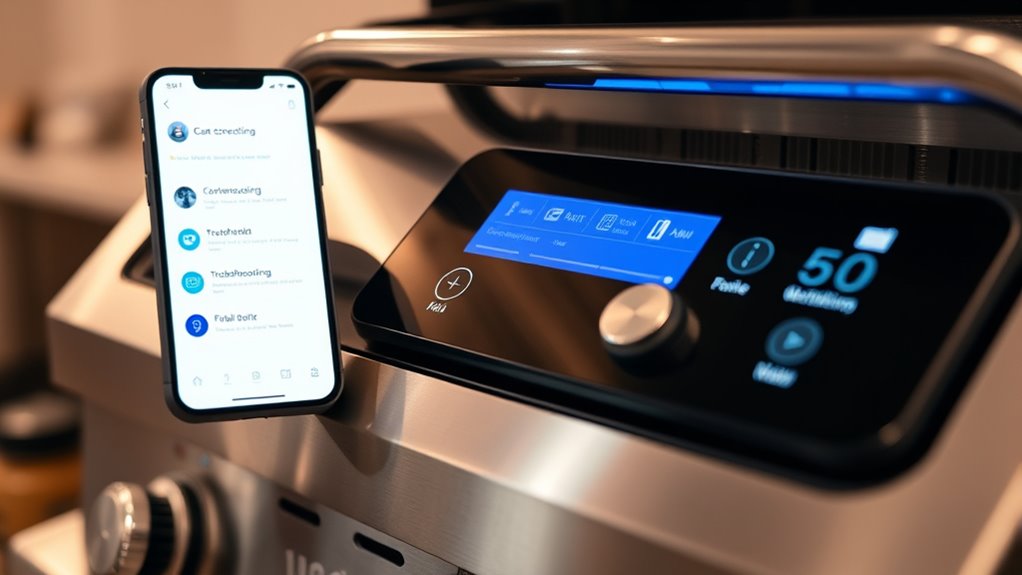

To fix connectivity and app issues with your smart grill, start by ensuring your Wi-Fi connection is stable and within range. Update the app and grill firmware to the latest versions, and restart both devices to clear any glitches. Check for interference from other electronics and clean the grill sensors to improve performance. Resetting your grill or rebooting your phone can also help. If you follow these steps, you’ll find helpful tips to get everything working smoothly.
Key Takeaways
- Ensure the grill is within Wi-Fi range and your device is connected to a stable network.
- Update the smart grill app and firmware to the latest versions for optimal performance.
- Restart the router, grill, and your device to resolve temporary connectivity glitches.
- Reset the grill’s Wi-Fi or Bluetooth module if connection issues persist.
- Check for interference from other electronics and keep sensors and vents clean for accurate readings.
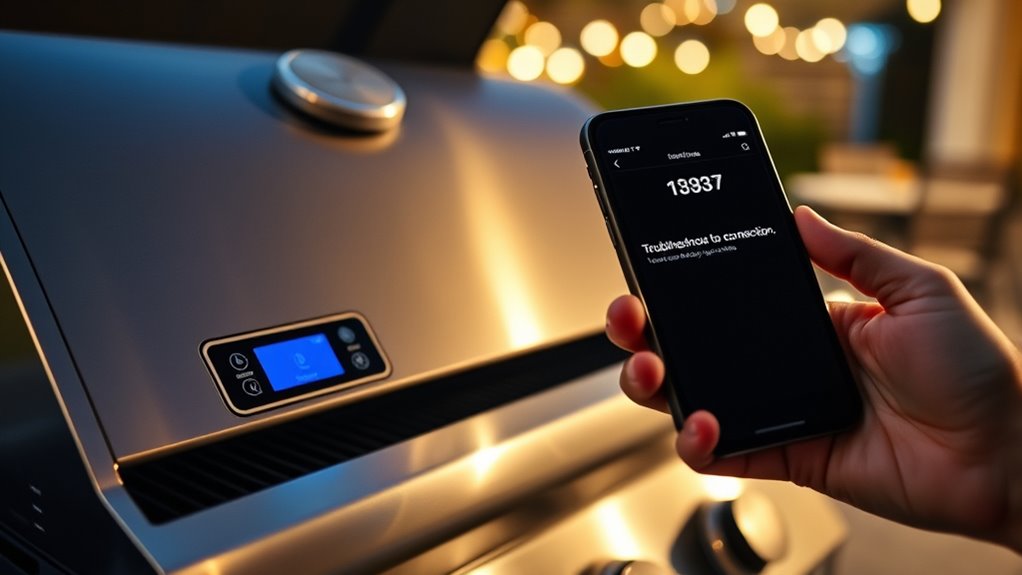
Smart grills offer convenience and precision, but like any electronic device, they can sometimes encounter issues. One common problem users face is difficulty with connectivity or app synchronization. When your smart grill isn’t responding as expected, it can feel frustrating, especially if you rely on the app for temperature control. Often, the first step is to check your Wi-Fi connection. Make sure your smartphone or tablet is connected to a stable network and that your grill is within range. Sometimes, simply restarting your router or reconnecting your device to the network can resolve connectivity hiccups.
If your smart grill isn’t responding, check your Wi-Fi connection and restart your router.
If the app still doesn’t sync properly, think about restarting the grill’s Bluetooth or Wi-Fi module. Most smart grills have a reset option—consult your user manual for instructions. Resetting can often clear temporary glitches that interfere with app communication. Also, verify that your app is up to date. Developers frequently release updates that fix bugs and improve device compatibility. Downloading the latest version can often solve stubborn connection issues.
Another aspect to think about is the grill’s firmware. Firmware updates can improve overall performance, including connectivity stability. Check within the app whether an update is available for your grill. If so, follow the prompts to install it. Keep in mind that during updates, your grill should stay powered on and connected. Once updated, test whether the app now properly controls your grill’s temperature settings.
Temperature control is an essential feature of smart grills, but it can malfunction if your device isn’t properly calibrated or if there’s interference. If you notice inconsistent temperature readings or your grill isn’t reaching the desired heat, start by cleaning the grill thoroughly. Grill cleaning is vital not only for food safety but also for maintaining excellent sensor performance. Grease and debris can interfere with temperature sensors, causing inaccurate readings or uneven heating. Remove any buildup from the grates and interior surfaces, paying close attention to sensors and vents. Additionally, wireless connectivity issues can sometimes affect temperature sensors and their readings.
After cleaning, recalibrate your grill if the option is available. Many smart grills have a calibration feature in the app; use it to set accurate temperature readings. If you continue to experience issues, check for any firmware updates that might enhance sensor accuracy or temperature stability. Always make sure your grill is clean and well-maintained to keep temperature control precise and reliable.
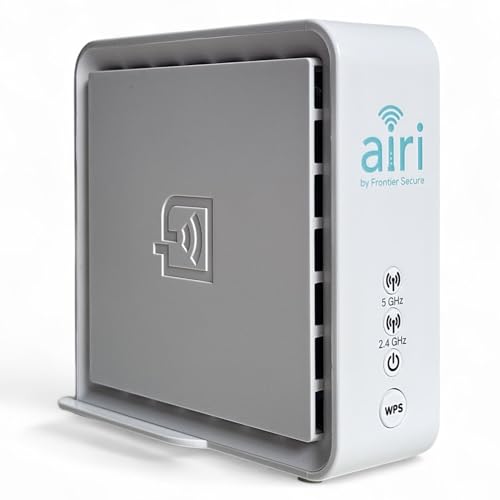
Smart Mesh WiFi Extender – Frontier Secure Air 4920 – Dual Band WiFi Booster with Ethernet Ports | 802.11ac WiFi 5 Mesh Extender for Whole Home Coverage, Easy WPS Setup
- Coverage Boost: Eliminates Wi-Fi dead zones
- Smart Mesh Technology: Seamless connectivity and roaming
- Dual-Band WiFi 5: Fast, reliable 2.4GHz and 5GHz speeds
As an affiliate, we earn on qualifying purchases.
As an affiliate, we earn on qualifying purchases.
Frequently Asked Questions
How Do I Update the Smart Grill’s Firmware?
To update your smart grill’s firmware, open the app connected to your grill and check for firmware update options, usually found in the settings or device menu. Make sure your app is compatible with the latest firmware version. If an update is available, follow the on-screen instructions to download and install it. Keeping your firmware updated guarantees better app compatibility, improved performance, and new features.
Can I Use the Grill Without Connecting to the App?
Think of your smart grill as a symphony — it can perform solo or with the orchestra. You can definitely use it without connecting to the app through manual operation, but keep in mind that certain features depend on device compatibility. You’ll need to rely on physical controls, which might limit some smart functions. So, yes, you can cook without the app, but for full harmony, connecting enhances your culinary experience.
What Should I Do if the Grill Disconnects Frequently?
If your grill disconnects frequently, start by checking your Wi-Fi stability and guarantee your router isn’t overloaded. Move closer to the grill to reduce Bluetooth interference that can disrupt the connection. Restart your Wi-Fi router and reconnect the grill. Keep your app and firmware updated. If issues persist, reset the grill’s connectivity settings and reconnect it, ensuring a stable network environment for consistent performance.
Is There a Way to Reset Network Settings on the Grill?
Yes, you can reset the network settings on your smart grill. To do a Wi-Fi reset or network restore, locate the reset button usually found on the back or bottom of the grill. Hold it down for about 10-15 seconds until you see the indicator lights flicker or change. This will restore the network settings to default, allowing you to reconnect your grill to Wi-Fi without hassle.
How Do I Troubleshoot App Notification Issues?
Imagine you’re living in the 21st century, but your app notifications are acting like a dinosaur. First, check your app notification settings to make certain alerts are enabled. Then, troubleshoot alerts by restarting your device and reconnecting the grill. Verify that your phone’s permissions permit notifications. If issues persist, update the app or reinstall it. These steps help you stay on top of grilling alerts, making your experience smooth and hassle-free.
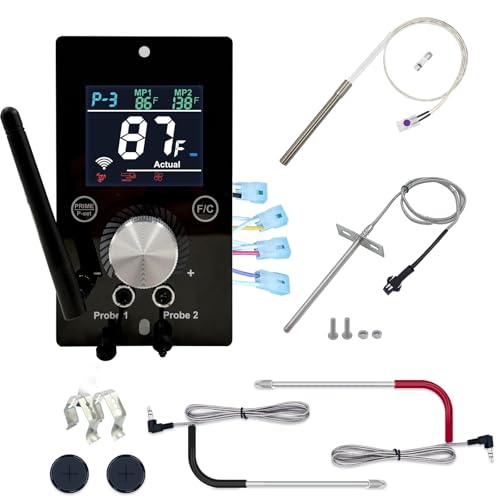
Hungrill Universal Upgraded WiFi PID Controller Complete Kit Replacement
- Universal Compatibility: Fits leading pellet grill brands
- Complete Upgrade Kit: Includes WiFi controller, igniter, probes
- Dual Meat Probes: Monitor two foods simultaneously
As an affiliate, we earn on qualifying purchases.
As an affiliate, we earn on qualifying purchases.
Conclusion
Remember, troubleshooting is part of the process. If your smart grill isn’t connecting or the app isn’t working, don’t get discouraged. Check your Wi-Fi, restart devices, and keep software updated. Sometimes, a simple reset does the trick. As the saying goes, “A problem shared is a problem halved.” Stay patient and methodical—most issues are temporary and fixable. With a little persistence, you’ll be back to grilling smartly in no time.

Smart Bluetooth Wireless Meat Thermometer Digital for Grill, Smoker, BBQ
- No App Needed: Reads temperatures on LED base instantly
- Quick Setup: First reading in under 60 seconds
- Certified for US and EU: Works right out of the box
As an affiliate, we earn on qualifying purchases.
As an affiliate, we earn on qualifying purchases.

ProTemp S1 Patented Smart Grill Gauge Thermometer Hub Wi-Fi and Bluetooth
- Universal Fit for Most Grills: Compatible with various grills and smokers
- Remote Monitoring: Track temperatures via Wi-Fi and Bluetooth
- Real-Time Alerts: Receive notifications on phone or Watch
As an affiliate, we earn on qualifying purchases.
As an affiliate, we earn on qualifying purchases.